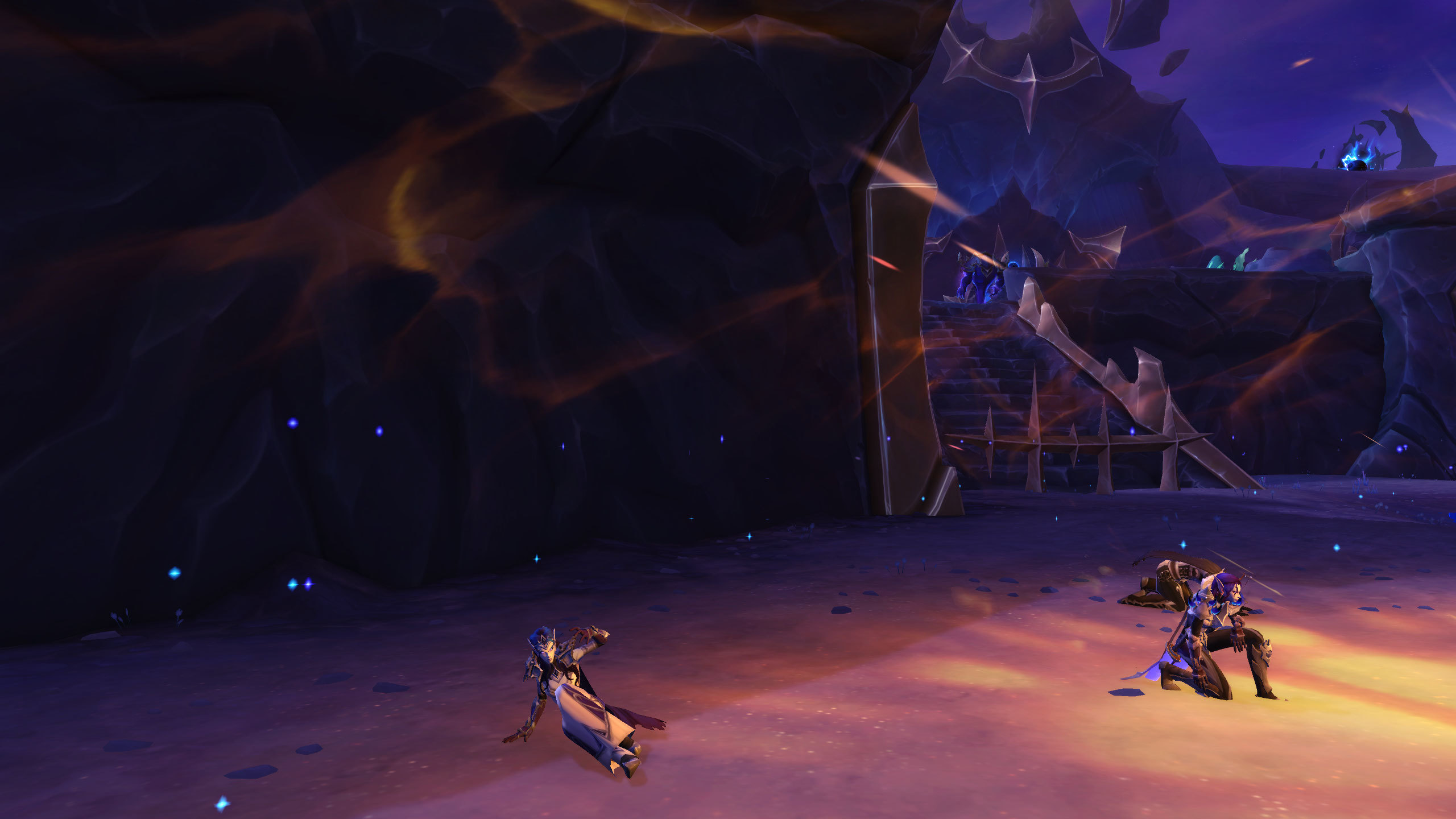
Your game screen (UI) can get messy with all the default bars, maps, and information. A cluttered screen makes it hard to see what is happening, especially in important fights. This guide will show you how to clean up your UI without taking away important details. We will cover simple steps to make your screen clear and helpful, letting you focus on the game. A clean UI helps you play better and makes the game more enjoyable to look at.
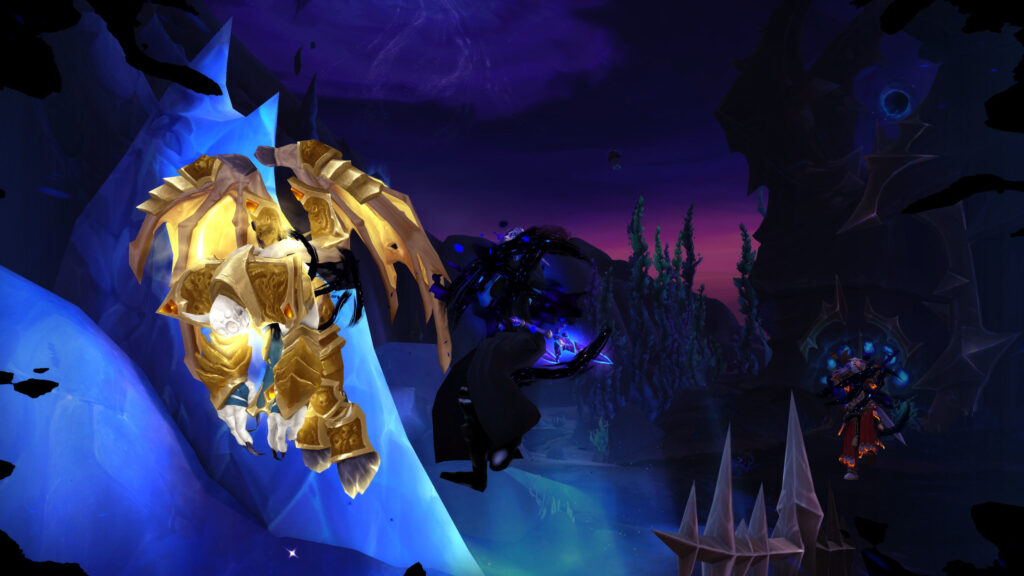
Hide What You Do Not Need (Default UI)
The default game UI shows a lot of things you might not need to see all the time. Right-click your action bars and select “Hide” for bars you do not use often. You can also move the chat window to a corner or make it smaller. The game menu button (the one with the computer icon) can be removed or made tiny. Think about what information you really need at a glance. If you only look at something once every few minutes, it does not need to be front and center. Less visual noise means less distraction, which helps you react faster in critical moments. Start by simply moving and hiding default elements.
Addons for a Clean Look (ElvUI or Bartender)
To truly clean your screen, you will need UI addons. ElvUI is a popular choice that replaces almost your entire UI with a clean, modern look. It lets you move everything: health bars, action bars, mini-map, and chat. If ElvUI is too much, Bartender is a good choice just for action bars. It lets you resize, move, and hide any action bar. These addons give you full control over where everything sits on your screen. They allow you to make the UI fit your specific needs, rather than forcing you to use the default layout. This level of control is key for a truly clean setup.
Place Important Info Centrally (WeakAuras)
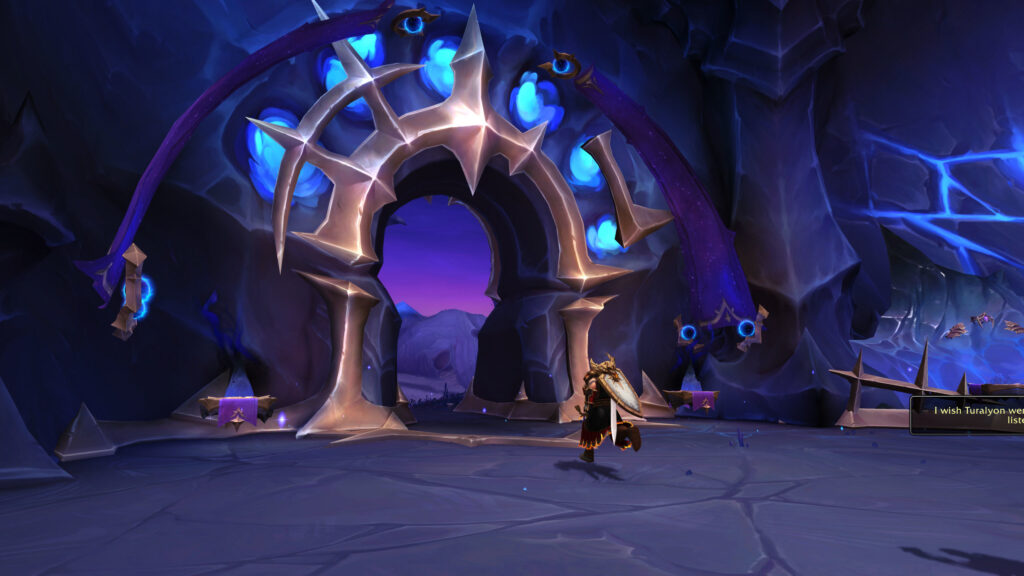
Your most important information—your health, target’s health, and key spell cooldowns—should be near the center of your screen. This means you do not have to look far away to see critical details. WeakAuras is an addon that lets you create custom visual alerts for spells, buffs, and boss mechanics. You can make an icon pop up right next to your character when a key spell is ready, or when a boss casts a dangerous ability. This keeps your eyes focused on your character and the action, reducing the distance your eyes travel to get information. It is like having a helpful reminder system built into your screen.
- Move your health and mana bars closer to your character.
- Place target health and cast bars near your own.
- Use WeakAuras for key spell cooldowns directly below your character.
- Make boss ability warnings appear in your central vision.
- Keep your eyes on the action, not on the edges of the screen.
Resize and Scale (The “Less Is More” Rule)
Most UI elements can be resized. Make your action bars smaller. Make your unit frames (health bars) just big enough to read. Your mini-map can be smaller if you mostly use the main map. The goal is to make everything readable without taking up too much screen space. Often, smaller elements mean you see more of the game world. This is the “less is more” rule for UI design. A larger field of view gives you a better understanding of what is happening around you. It helps you see incoming threats more easily.
Test and Adjust (It Is Not a One-Time Fix)
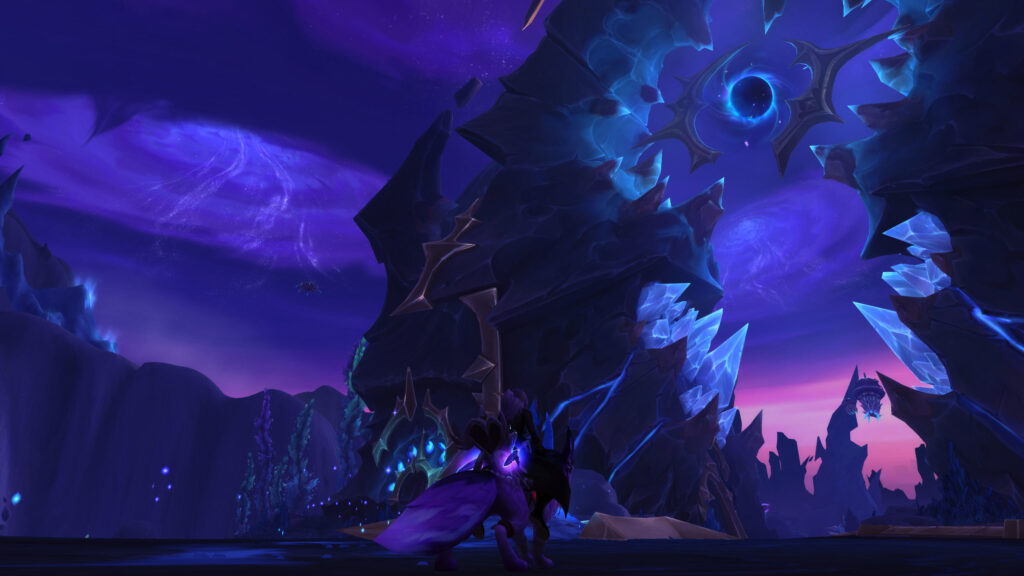
A UI overhaul is not a one-time thing. After you set up your new UI, go into a dungeon or raid. Play for a bit. Did something feel out of place? Was something hard to see? Did a key piece of information disappear? Make small adjustments. Move things around. It takes time to find the perfect setup for you. Do not be afraid to change things. Your ideal UI will change as you play more and as new content comes out. It is a process of constant improvement to make your game experience better.
Leave a Reply